Opus 5.5 for Video Editing: Scripts, Cut Lists and Review Notes

By Olivia Hart
MyClaw Editorial
MyClaw
Run Best-in-Class AI Agents Now
Run OpenClaw or Hermes Agent on managed MyClaw hosting, so your AI agent stays online, updated, and ready for real work.
Start HostingAI Takeaway
- Can you use Opus 5.5 for video editing? Yes, for the editorial work around an edit: scripts, shot lists, cut lists, caption drafts, and review notes. Official Anthropic docs describe Claude Opus 5.5 as a text-and-image model that returns text. It is not a timeline editor and not a video generator.
- Can Claude Opus 5.5 watch or cut a video file by itself? Official docs do not list video as a native model input, and official Claude upload types are documents and images. Use a timestamped transcript plus stills or screenshots, then apply approved cuts in your own editor.
- What should you give it, and what should you ask for? Give a brief, a transcript with timecodes, and any stills you can attach. Ask for a hook, a scene outline, a cut list with in/out times and reasons, then specific review notes. Approve the cut list before you change the timeline.
- When should you use a video generator instead? When you need new footage from a prompt or references. That is a different job from Opus 5.5. Do not treat MyClaw’s video-generation chat as the place to run Opus 5.5 for editing work.
- Where can you run Claude Opus 5.5 for this workflow on MyClaw? In MyClaw Chat, on model ID
claude-opus-5-5. Popular models on MyClaw are free to use. Paste the brief and transcript; attach documents or stills only if your account supports those file types. Video-file upload on MyClaw Chat is not confirmed.
What Opus 5.5 Can (and Cannot) Do for Video Editing
People looking up opus 5.5 for video editing often want a Premiere or CapCut stand-in. That is the wrong expectation. Claude Opus 5.5 for video editing (API ID claude-opus-5-5, released 22 September 2026) is a long-context reasoning and writing model: official docs say it accepts text and images and returns text.
It can help with the editorial work around a cut — scripts, shot lists, cut lists, caption drafts, and review notes — but it cannot open a sequence, finish picture and sound, or take a video file as a native input. It is also not Claude Motion, a separate official Claude artifact beta for code-based explainers, and it is not a video generator.
Search results for this phrase are often unofficial tutorials that wire Claude Code to FFmpeg or a Premiere bridge. Those workflows are not official Anthropic features, and they are not what this guide covers. For the full model card, see the Opus 5.5 review.
| Item | Official detail (as of 11 November 2026) |
|---|---|
| Official name and ID | Claude Opus 5.5 / Opus 5.5; API ID claude-opus-5-5 |
| Launch date | 22 September 2026 |
| Official I/O | Text and images → text |
| What it can help with | Scripts, shot lists, cut lists, caption drafts, and still-frame review notes |
| What it is not | A timeline NLE, a video generator, or a model with native video-file understanding |
Official Capabilities That Actually Help an Edit
Three official capabilities map cleanly onto edit prep.
Writing and planning. Anthropic says Opus 5.5 writes more clearly than prior models, leads with what matters, and follows writing rules you give it. Those vendor-stated claims about text work are the honest basis for scripts, voiceover, shot lists, and EDL-style cut lists as text. When you ask for a cut list, name the columns you want: in and out times, the source take, the spoken line, and a reason to keep or cut. The result is still a document you review, not a change to the timeline.
Vision on stills only. Official vision supports JPEG, PNG, GIF, and WebP. Animations are unsupported; only the first frame is used. Export frames, attach storyboard stills, or share a timeline or waveform screenshot, then ask a specific question about that still. Do not treat the model as if it can watch the moving picture.
Long context. The 1M-token context window is large enough to hold a transcript, a brief, and prior notes in one working pass. Output is text, up to 128K tokens on the standard API, so a scene outline, a cut list, caption drafts, and a revision pass can stay in the same thread.
Official Claude apps also document computer use, creative-tool connectors that mention Adobe and Premiere, and Claude Motion. None of these are confirmed on MyClaw, and none make the model a timeline NLE or a footage generator. Third-party Claude Code tutorials that use FFmpeg, Remotion, or a Premiere bridge are unofficial, not product features.
For effort, XML structure, and done criteria when you brief a cut list, see the Opus 5.5 prompting guide.
A Practical Workflow: Brief, Transcript, Cut List and Notes
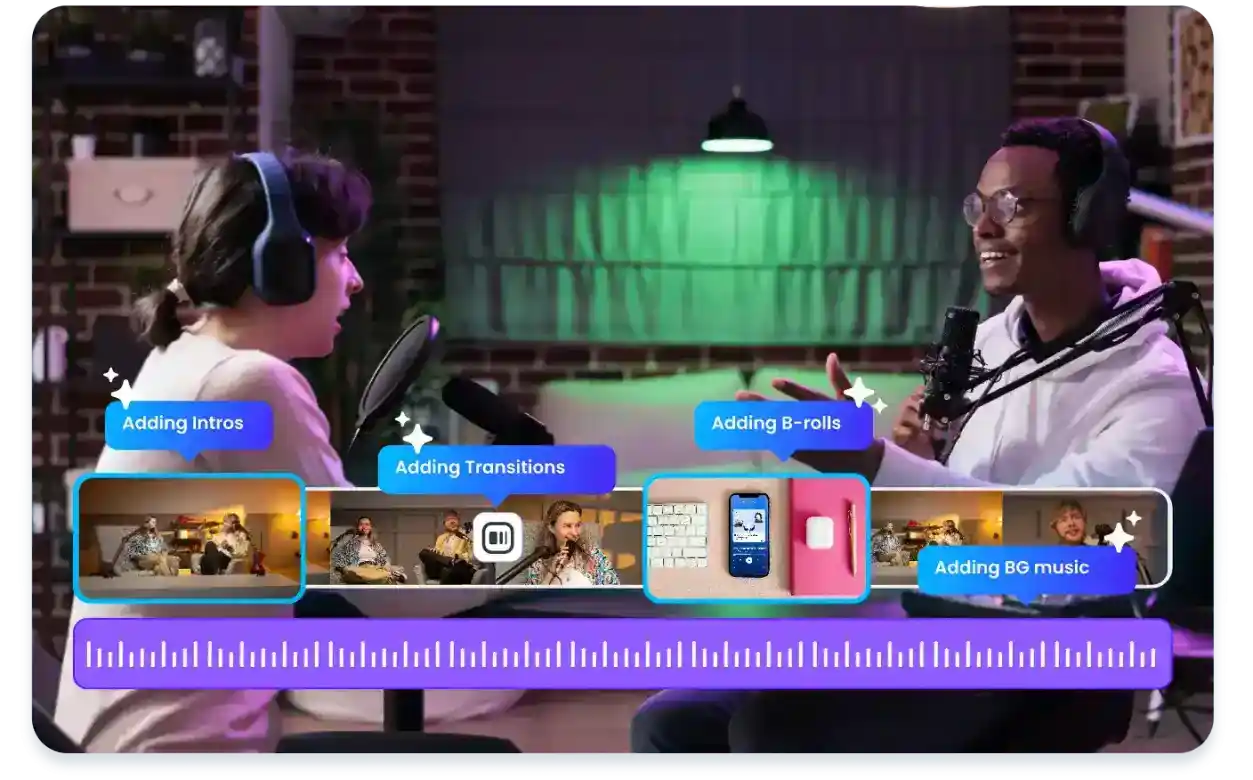
Here is how to use Claude Opus 5.5 for video editing work in practice. Stay on text, stills, and documents. Do not assume the model will ingest the video file.
- Start with a brief. State the runtime, aspect ratio, audience, the one thing the cut must say, and what “done” looks like. Name hard constraints up front, such as brand terms or a must-keep shot.
- Paste a timestamped transcript and any shot or take notes you already have. If you still need a transcript, make one in another tool first, then paste it with timecodes. The transcript is the model’s picture of the footage.
- Ask for a hook, a scene-by-scene outline, and a cut list or EDL-style table with timecode in and out, the source take, the spoken line, and a reason to keep or cut. Treat that table as a proposal. For a long interview, request the cut list one scene or one act at a time, and approve each pass before you change anything in your NLE.
- Optionally attach stills or screenshots if the workspace allows image or file attaches, and ask for specific review notes: a missed jump cut, a caption collision, off-brand text, or a pacing issue. Point at a frame or a timeline screenshot and ask a concrete question.
- Ask for caption drafts or a revision pass on the same notes, still in text. Keep the approved cut list in the thread so captions stay aligned with it.
- Take the approved text into Premiere, CapCut, DaVinci, or whichever editor you already use. Transfer the in and out points and the review notes into the sequence yourself.
You still make the picture and sound decisions. The model can prepare the paperwork; it cannot replace the cut, the grade, or the mix.
When You Still Need a Timeline Editor or a Video Generator
Stay in a timeline editor when the job is cutting, grading, mixing, or finishing picture and sound. Opus 5.5 can prepare scripts, cut lists, and notes, but the picture and sound still have to be finished in an NLE.
Use a video generation model only when you need new clips from a prompt or references. That is a different tool. Official Opus 5.5 I/O does not create footage: text and images go in, and text comes out. If the footage already exists and needs to be shaped, stay in the editor and use Opus 5.5 for the paperwork around the cut. If you actually need generated clips, see the MiniMax H3 review.
Use Opus 5.5 in MyClaw Chat for Video-Editing Workflows
You can run the workflow above in MyClaw Chat with Claude Opus 5.5 (claude-opus-5-5). Open Chat, choose that model in the picker, paste the brief and a timestamped transcript, and ask for a hook, a cut list, or review notes. Popular models on MyClaw are free to use. That is not a free video-generation allowance.
This workflow is not a timeline NLE and not a video generator. Do not use MyClaw’s /chat/video page as the Opus 5.5 entry point; that page is for video generation models such as confirmed MiniMax H3.
Do not assume Chat will accept a video-file upload. If your account allows, attach documents or stills and screenshots along with the pasted transcript. Available tools can depend on your account and plan. MyClaw is usable in the UK and EU.
Conclusion
Opus 5.5 for video editing is a strong fit for the words around the cut — scripts, cut lists, and review notes — and a poor fit if you expected a timeline app or a footage generator. Official I/O remains text and images in, text out. Give it a brief and a timestamped transcript, approve the cut list and notes, then finish picture and sound in the editor you already use. Run that workflow in MyClaw Chat with Claude Opus 5.5 (claude-opus-5-5).
Skip the Setup, Run Best-in-Class AI Agents Now
Launch a managed OpenClaw or Hermes Agent workspace in minutes, with always-on hosting, updates, and support handled by MyClaw.
Get Started