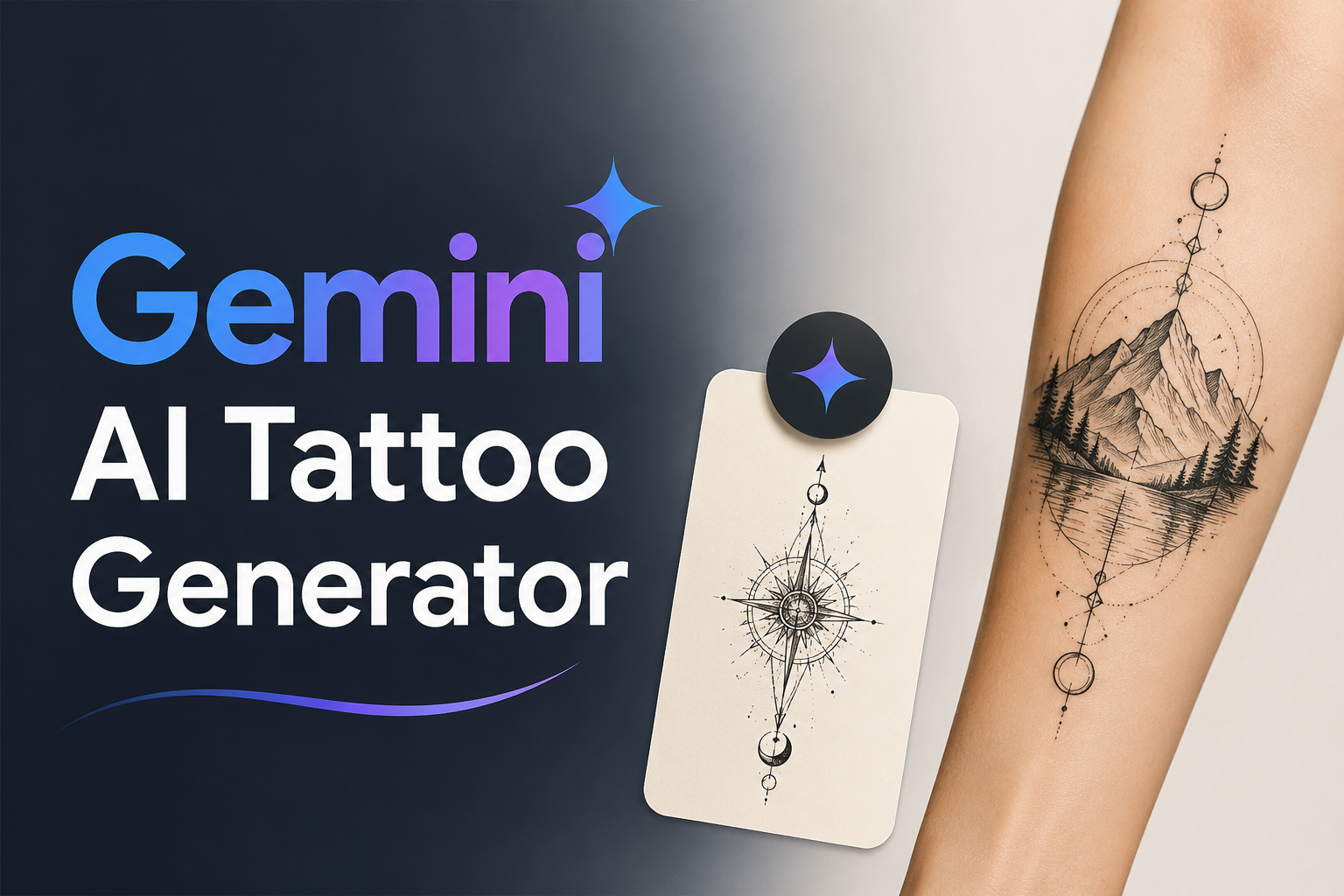
Gemini AI Tattoo Generator: Best Models for Tattoo Design in 2026

By Nathan Cole
MyClaw Editorial
AI Tattoo Generator
See Your Tattoo Idea Before the Needle
Create and refine a custom tattoo concept from a prompt or photo, then bring the strongest version to your artist.
Create Your Tattoo DesignAI Takeaway
- What is the best Gemini model for most tattoo designs? Nano Banana 2, also called Gemini 3.1 Flash Image, is the best default because it balances image quality, speed, reference-image handling, and repeated edits.
- When is Nano Banana Pro worth using? Choose Gemini 3 Pro Image for complex sleeves, portraits, multiple references, ornamental lettering, or briefs that need precise creative control—not rough ideas.
- Which Gemini product is easiest? The Gemini app is simplest; AI Studio offers direct model control, while MyClaw provides editable tattoo-specific examples.
- Should one model handle the whole process? Not always. Use Nano Banana 2 for exploration and placement tests, then move only the selected complex direction to Nano Banana Pro.
Gemini Offers More Than One Tattoo Model
“Gemini AI tattoo generator” describes a family of image models, not one product. Choose according to whether you need flat artwork, a photo transformed into tattoo art, a placement preview, or accurate lettering. Early concepts need speed; multi-reference sleeves need control; a Gemini AI photo tattoo edit needs identity preservation.
Which Gemini Model Is Best for Tattoo Design?
| Model | Google model name | Best tattoo use | Main tradeoff |
|---|---|---|---|
| Nano Banana 2 | Gemini 3.1 Flash Image | Most concepts, photo edits, and placement tests | Less precise on the hardest multi-reference briefs |
| Nano Banana Pro | Gemini 3 Pro Image | Complex compositions, multiple references, and lettering | More capability than rough ideation needs |
| Nano Banana 2 Lite | Gemini 3.1 Flash Lite Image | Fast silhouettes and mood-board sketches | Weak fit for reference-heavy editing |
| Nano Banana | Gemini 2.5 Flash Image | Simple work in an existing older workflow | Legacy model; migration is recommended |
Nano Banana 2: Best Overall for Tattoo Ideas and Photo Edits
Nano Banana 2, or Gemini 3.1 Flash Image, is the best starting point for most tattoo work. Google positions it as the versatile generalist that balances intelligence, speed, cost, and latency—useful when testing styles, scale, linework, and placement. It can also generate up to 4K, so resolution alone is not a reason to switch to Pro.
It accepts multiple references, so a portrait, linework direction, and placement photo can have separate roles. This improves control without guaranteeing perfect likeness.
Nano Banana Pro: Best for Complex, Detailed, or Text-Heavy Tattoos
Nano Banana Pro, or Gemini 3 Pro Image, is designed for professional asset production and complex instructions. Choose it for sleeves, memorial portraits, dense symbolic layouts, several references, or presentation images. It offers stronger control, consistency, text rendering, and output up to 4K.
Pro is also the better Gemini choice for ornamental lettering, names, dates, and ambigrams. Every character still needs manual checking. Use Pro after selecting a direction, not for vague brainstorming.
Nano Banana 2 Lite: Best Only for Fast Rough Concepts
Gemini 3.1 Flash Lite Image is optimized for low latency and cost. Use it to compare silhouettes or test a broad placement direction. It is a weak choice for likeness, repeated edits, multiple references, or intricate linework; move surviving ideas to a stronger model.
Original Nano Banana: Still Useful, but No Longer the Default Pick
The original Nano Banana, or Gemini 2.5 Flash Image, remains useful for quick generation and familiar editing workflows. Keep it for a simple existing project; start new work with Nano Banana 2 unless access or speed decides otherwise.
Match the Gemini Model to the Tattoo Task
| Tattoo task | Start with | Upgrade when |
|---|---|---|
| Fine-line, botanical, geometric, or blackwork concept | Nano Banana 2 | The chosen design needs more precise control or a harder composition |
| Portrait or pet transformed into tattoo artwork | Nano Banana 2 | Likeness, multiple references, or detailed composition becomes difficult |
| Tattoo placement on an arm, shoulder, back, or leg | Nano Banana 2 | Usually no upgrade is needed for a visual test |
| Lettering, names, dates, or ambigrams | Nano Banana Pro | Start on Pro, then proofread and have the artist redraw it |
| Sleeve or multi-element body composition | Nano Banana Pro | Keep the artist involved before adding micro-detail |
| Rapid mood-board exploration | Nano Banana 2 Lite | Move the selected direction to Nano Banana 2 |
Which Gemini Product Should You Use?
The model controls image capability; the product controls how you access it.
| Product | Best for | What to know |
|---|---|---|
| Gemini app | Casual generation and uploaded-photo edits | Easiest conversational interface; available model options depend on mode and plan |
| Google AI Studio | Direct model testing | Useful for exact model IDs, resolutions, aspect ratios, and repeatable prompts |
| Gemini API | Developers | Appropriate for building a tattoo app or automated workflow, not a one-off idea |
| MyClaw image workspace | Guided creative work | The broader AI image generator includes purpose-built starting points and selectable image models |
Use a consumer interface for a personal idea. Choose AI Studio for controlled experiments and the API for product development—not as shortcuts to better art.
A Three-Step Gemini Tattoo Workflow in MyClaw
1. Use Nano Banana 2 to Explore the Direction
Open the MyClaw Tattoo Generator, choose a botanical, geometric, or lettering example, or enter your own idea. Describe the subject, style, body area, size, orientation, line weight, and negative space. Request flat artwork on a plain background—not skin.
To turn a portrait, pet, flower, or object photo into standalone tattoo art, upload it here and request simplified, readable tattoo linework on a plain background. Save body-photo editing for the next step.
2. Test the Design on a Photo Before Increasing Detail
Upload a clear body photo and attach the design as a second reference when the interface allows it. Ask Nano Banana 2 to preserve identity, anatomy, pose, lighting, background, and skin texture while changing only the tattoo area. Refine one variable at a time.
3. Use Nano Banana Pro for the Final Complex Concept
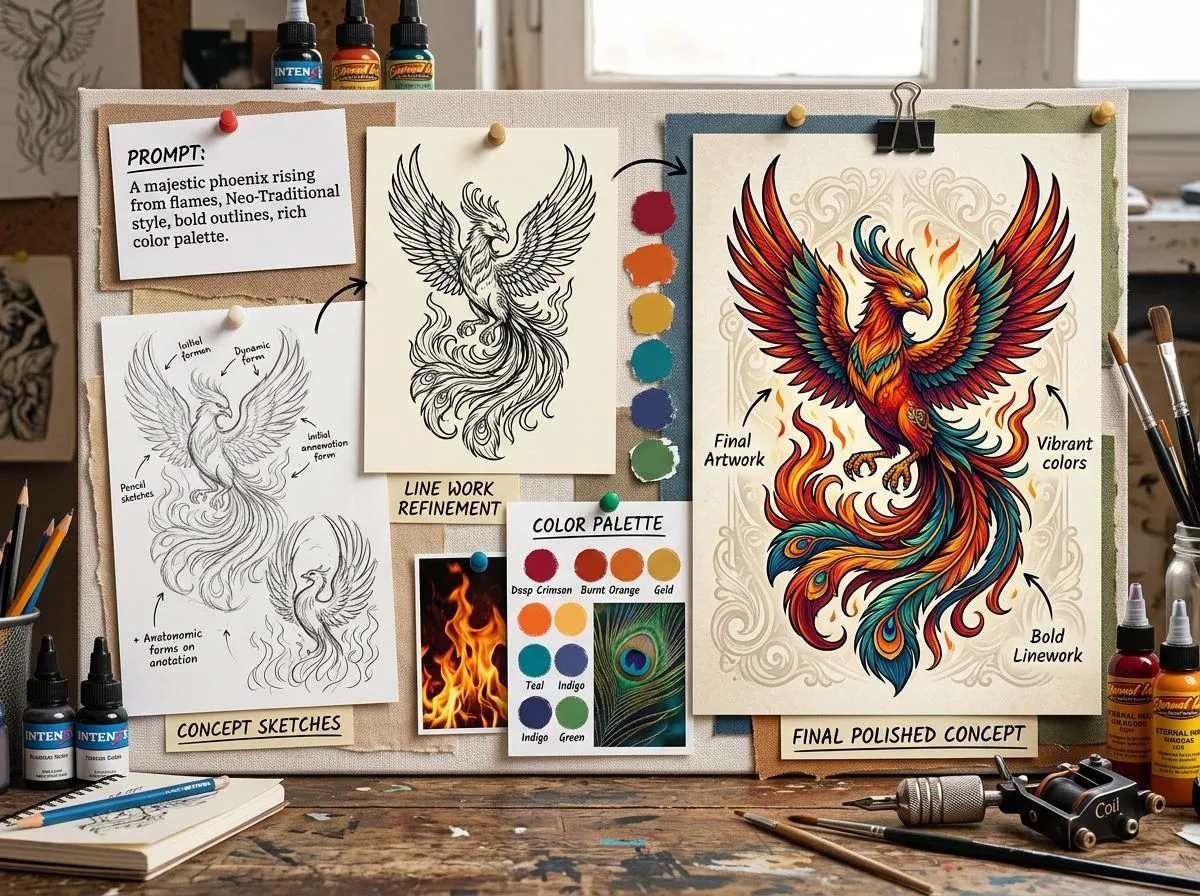
Move the chosen direction to Pro when detail, text, multiple references, or a large composition justifies it. Generate a presentation image, not a “production-ready stencil,” then ask an artist to redraw it for anatomy, line weight, ink behavior, and aging.
Prompting Each Gemini Model for Better Tattoo Results
Give Nano Banana 2 Clear Edit Boundaries
Photo edits work better when the prompt separates what must remain from what may change:
Edit the body photo. Keep identity, anatomy, pose, skin tone, lighting, clothing, and background unchanged. Add the supplied blackwork design to the outer forearm at 12 cm tall. Follow the arm’s curvature and integrate healed black ink with natural skin texture. Change only the tattoo area. No sticker edges, redness, altered muscles, or background changes.
If the placement is wrong, ask only to move or resize it. Replacing the full prompt invites the model to reinterpret everything.
Give Nano Banana Pro a Design Specification
Pro benefits from a design brief rather than a pile of adjectives:
Create an upper-arm tattoo concept combining a raven, crescent moon, and the exact date “[DATE].” Make the raven primary, frame it with the moon, and separate the date below. Use bold blackwork, controlled dot shading, durable spacing, and negative space that follows the shoulder. Show flat artwork on a light background. No skin, extra words, watermark, or tiny clutter.
Generate the date as part of the concept, but verify it character by character. A tattoo artist should rebuild all lettering.
Do Not Ask Any Model to Solve Conflicting Tasks at Once
“Flat high-contrast artwork on paper” and “realistic healed tattoo on skin” are conflicting outputs. The first optimizes readable design; the second simulates photography, curvature, and skin. Generate them separately.
The reliable sequence is flat artwork, placement preview, polished concept, then artist redraw. This reveals whether the design is weak or only the mockup is unconvincing.

What Gemini Cannot Decide for Your Tattoo
Gemini can visualize options, but it cannot determine whether a design will age well in your skin. Common failures include misspelled text, distorted symbols, disconnected lines, excessive micro-detail, impossible anatomy, and shading that becomes muddy at the intended size.
Treat every result as a visual brief. Check names, dates, translations, cultural symbols, and similarity to existing artwork. A qualified tattoo professional should decide final placement, scale, line weight, color, stencil construction, and which portrait details can be simplified without losing likeness.
Choose the Model for the Stage, Not the Hype
Start with Nano Banana 2. Upgrade only the selected complex direction to Nano Banana Pro. Use Lite or the original model when speed matters more than control. Then bring two or three genuinely different concepts—not dozens of near-duplicates—to an artist who can turn the strongest direction into a tattoo that works on your body.
Turn Your Tattoo Idea Into a Design
Start with a prompt or photo, explore styles and placement, and refine a concept to share with your tattoo artist.
Create Your Tattoo Design